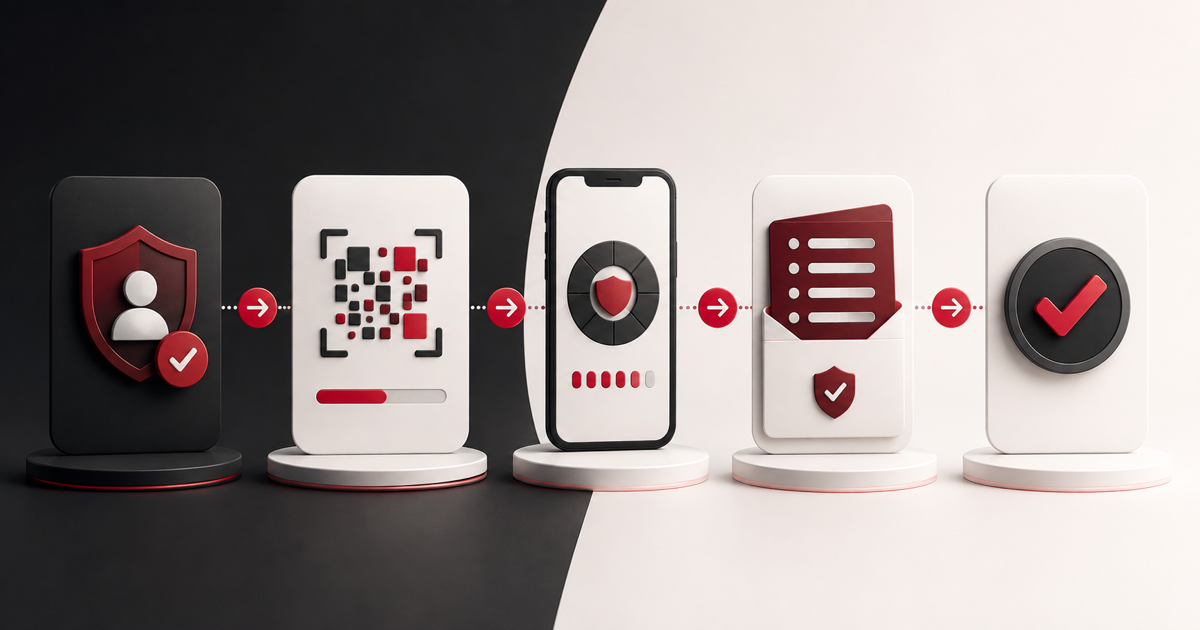
To set up 2FA with an authenticator app, open the official security settings for your account, add an authenticator method, scan its QR code, verify a fresh code, and save the recovery codes. Do not close the setup screen until the service confirms that enrollment is complete.
Menu names differ by provider, but the safe workflow below applies to most standard TOTP setups.
Before you begin
- Install a reputable authenticator app from its official source.
- Use a trusted phone or computer protected by a PIN, password, or biometrics.
- Confirm that automatic date and time are enabled.
- Make sure you can still access the account and its recovery email or other approved method.
- Have a secure location ready for backup codes.
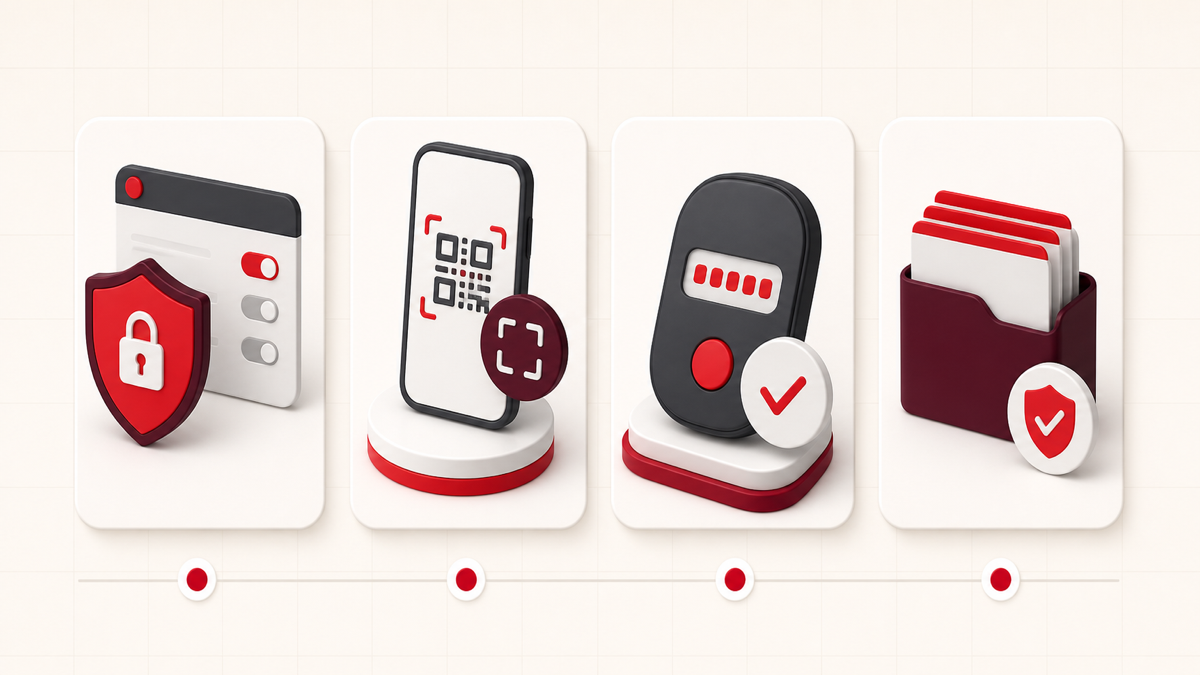
Step-by-step: set up an authenticator app
1. Open the official account security page
Sign in by typing the known official address or using the provider’s app. Navigate to Security, Login & security, Two-step verification, MFA, or Two-factor authentication. Avoid setup links received unexpectedly by email or message.
2. Choose the authenticator app option
Select an option labeled Authenticator app, Verification code, or TOTP. If the provider offers passkeys or security keys, consider whether a phishing-resistant method would be a better primary choice.
3. Scan the QR code
Open the authenticator, add an account, and scan the QR code shown by the service. If scanning is unavailable, reveal the manual key and enter it exactly. Our guide explains how to identify the correct 2FA setup key.
The QR code and manual setup key are credentials. Do not photograph, email, or share them.
4. Verify a fresh code
The authenticator should display a temporary code. Wait for a new code if the current countdown is nearly finished, enter it into the service, and submit. This confirmation proves that both sides have matching setup information.
5. Save recovery codes
Download, print, or copy the provider-issued recovery codes to a protected location separate from the authenticator device. Recovery codes are often single use. Do not paste them into an ordinary TOTP field.
6. Add another recovery method
Where available, register a second security key, passkey, authenticator device, or other approved recovery method. Avoid relying on a single phone for both routine authentication and the only backup.
7. Test before signing out everywhere
Open a private browsing window or another trusted device and perform a complete sign-in. Confirm that the password, authenticator code, and recovery choices behave as expected before removing older methods.
What happens during setup?
The QR code normally contains an account label, provider name, and private TOTP secret. The authenticator stores that configuration and combines the secret with time to generate changing codes. Read how TOTP authenticator codes work for the technical explanation.
How to store backup codes
A secure choice might be an encrypted password manager, a protected offline record, or a printed copy stored with other important documents. Do not keep the only backup as an unprotected screenshot on the same phone.
When a backup code is used, mark it used. If the set is exposed or nearly exhausted, generate a new set through the account provider; doing so commonly invalidates the old set.
Common setup mistakes
- Scanning a QR code from a phishing page.
- Closing setup before the first code is verified.
- Saving the QR screenshot in an unprotected photo library.
- Entering a recovery code instead of the changing authenticator code.
- Using an incorrect device clock.
- Removing the old method before testing the new one.
- Failing to record recovery codes.
What if the first code is rejected?
Enable automatic date, time, and time zone, wait for a fresh code, and confirm that you scanned the latest QR code from the active setup screen. If you restarted enrollment, the previous secret may no longer be valid.
Use our full invalid TOTP troubleshooting checklist before resetting an account.
Should you choose an app or SMS?
An authenticator app normally works offline and avoids phone-number takeover risk. SMS can be easier to start but depends on the carrier and number recovery process. Our authenticator app versus SMS comparison explains the trade-offs.
Using the Get2FA.dev tool
If you have an authorized standard Base32 secret, the Get2FA.dev tool can generate a code in your browser for testing or a temporary workflow. It is not an account-recovery service or permanent credential vault. Never submit secrets through the contact form.
Frequently asked questions
Can I set up the same account on two authenticators?
Some services let you register multiple authenticators. Two devices can also generate matching TOTP codes if configured with the same secret, but copying secrets expands exposure. Prefer provider-supported multiple methods when available.
What if I lose my phone?
Use a recovery code, registered passkey or security key, second authenticator, or the provider’s official recovery process. After access is restored, revoke the lost device’s enrollment if necessary.
Do authenticator apps need internet access?
Standard TOTP generation can work offline after setup. Cloud backup, synchronization, push approval, updates, and account recovery may require connectivity.
Is a six-digit code always TOTP?
No. SMS, email, and other systems can also use six-digit values. Confirm which verification method the sign-in page requests.