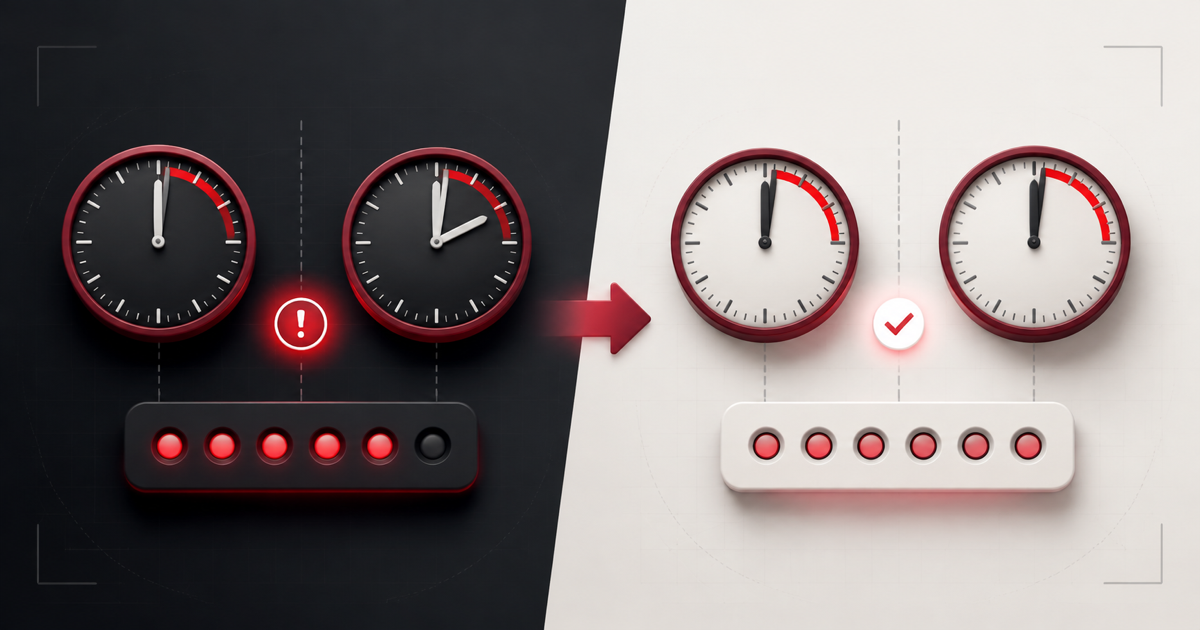
If an authenticator code is rejected, do not immediately reset the account. A TOTP code depends on the correct secret and the current time, so a small mismatch can make an otherwise valid-looking six-digit code fail.
Work through the following checks in order. Avoid repeated guesses because some services temporarily lock sign-in after too many failed attempts.
Quick checklist
- Turn on automatic date, time, and time zone.
- Wait for a new code and submit it early in the countdown.
- Confirm that you selected the correct account entry.
- Make sure you are using an authenticator code—not SMS or a recovery code.
- Check that the setup secret was copied correctly.
- Verify whether the service uses non-standard TOTP settings.
- Use official recovery options if the enrollment is no longer valid.
1. Synchronize your device clock
Time drift is the most common reason a standard TOTP code fails. The authenticator and the website independently calculate a code for the current time window. If the phone or computer clock is ahead or behind, they calculate different values.
Enable automatic date and time, automatic time zone, and network-provided time in your device settings. If they are already enabled, toggle synchronization off and back on or request an immediate time sync. Then restart the authenticator or browser and try a fresh code.
2. Wait for the next code
Most TOTP codes change every 30 seconds. A code copied with only one or two seconds remaining may expire before the server verifies it. Wait for the timer to reset, then enter the new code promptly.
The countdown on our online TOTP generator shows how much of the current period remains.
3. Select the correct account
Authenticator apps can contain several entries with similar names. Check the service name, account email or username, and issuer before copying a code. A valid code from the wrong entry will still be rejected.
If an account was enrolled more than once, remove obsolete entries only after confirming which one works and ensuring you have recovery access.
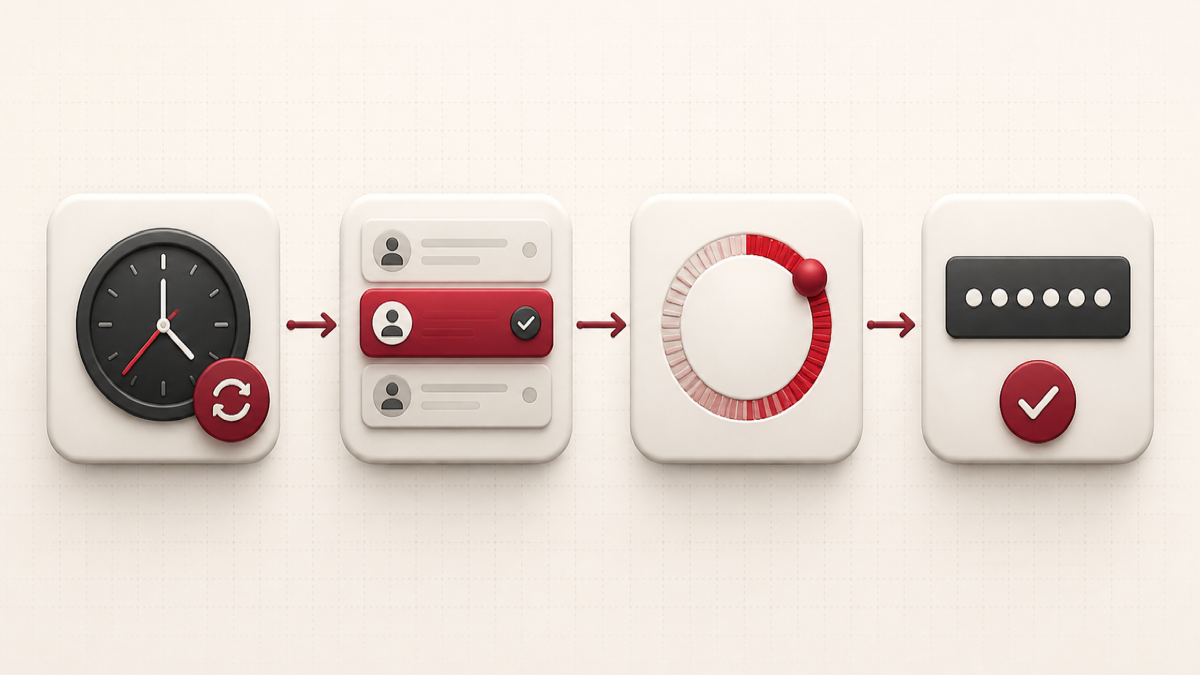
4. Identify the type of verification requested
A sign-in page may request an SMS code, email code, push approval, backup code, or authenticator code. These are not interchangeable. A six-digit format alone does not prove that a field accepts TOTP.
Choose “authenticator app” or the equivalent option before entering a generated TOTP code. Use a recovery code only in the provider’s dedicated recovery flow.
5. Check the secret key
A missing character, confused label, or wrong Base32 key produces a different code. If you are still configuring 2FA, return to the setup screen and compare the manual key carefully. Spaces are commonly ignored, but letters and digits must be exact.
Read our guide to finding and identifying a 2FA secret key. Never send the key to support or publish a screenshot of its QR code.
6. Check TOTP settings
The common defaults are SHA-1, six digits, and a 30-second period. Some systems use another algorithm, eight digits, or a different period. A generator using standard defaults will not match a service configured differently.
If the setup QR code or administrator documentation specifies custom values, use an authenticator that supports them. Do not randomly change settings—match the configuration issued by the provider.
7. Confirm setup was completed
During enrollment, many services require one generated code before 2FA becomes active. Closing the setup page too early may leave the account unconfigured. Return to the security settings and check whether the authenticator method is enabled.
If the service created a new secret during a second setup attempt, codes from the first secret will no longer work.
8. Consider server-side or account changes
If several people are seeing failures on the same service, check its official status page. An administrator may also have reset your 2FA enrollment, changed authentication policy, or disabled a method. For work accounts, contact the authorized administrator without sharing secrets or live codes.
9. Recover access safely
If troubleshooting fails, use a saved recovery code, another registered factor, a passkey, or the provider’s official account-recovery process. Once signed in, remove the broken authenticator enrollment and configure a new one.
Save the new recovery codes separately. If a secret may have been exposed, revoking the old enrollment is more important than making its old codes work.
Common mistakes to avoid
- Changing the clock manually instead of enabling reliable automatic synchronization.
- Submitting the same nearly expired code repeatedly.
- Pasting a password or backup code into a TOTP generator.
- Assuming every six-digit prompt accepts authenticator codes.
- Sharing a QR code or secret with someone offering support.
- Disabling 2FA before confirming a working recovery method.
Frequently asked questions
Why do codes match on one device but not another?
The devices may have different clock accuracy, or they may hold different secret keys. Synchronize both clocks and verify that both entries came from the same active enrollment.
Does the time zone matter?
TOTP calculations use a universal time reference, but an incorrect time-zone configuration can be a sign that the device clock is wrong. Automatic time and time-zone settings are the simplest fix.
Will clearing browser data fix a 2FA code?
Usually not. Clearing site data can remove a theme preference or session, but it does not repair an incorrect secret or clock. It may also sign you out, so try the targeted checks first.
Can support tell me my old secret?
Reputable services generally do not reveal an existing authenticator secret through support. They may help verify identity and reset the 2FA method using an official recovery process.
Understand the underlying system
For a clear explanation of authentication factors, shared secrets, and changing codes, read What Is 2FA and How Does It Work?. Understanding the two inputs—secret and time—makes most TOTP failures easier to diagnose.